

Pinning an item in Windows can make it easier to find and select applications and documents. There are a few ways you can pin items in Windows 7.
You can pin to:
- Start Menu
- Start Menu under the Application, e.g. Word
- Taskbar
- In each application under Recent Documents or Recent Places
Today we are going to focus on the Start Menu and Taskbar.
Pin to the Start Menu
- Right click on the application icon to be pinned (either in the Start Menu or on the Taskbar)
- Select Pin to Start Menu
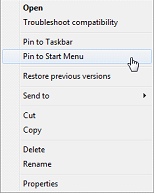
- Open the Start Menu and the application will be listed
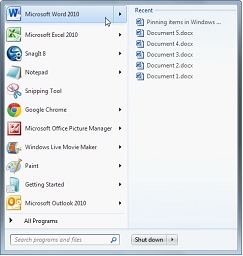
TIP: To unpin, right click the application in the start menu and select Unpin from Start Menu / Taskbar.
Pin to Start Menu Recent List
- Open the Start Menu
- Select the arrow (button) on chosen application to reveal the recent list
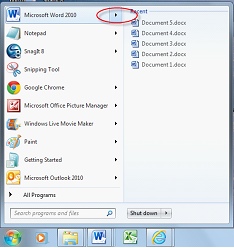
- Hover the mouse over the document until the pin icon is revealed
- Select the pin (button) to pin this item to the top of the list

TIP: Select the pin again to unpin the document.
Pin to Taskbar
- Right click on the application (either in the start menu or on the taskbar)
- Select Pin to Taskbar

- The application is now pinned to the Taskbar