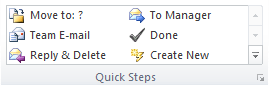
Quick Steps are one-click buttons which can perform multiple actions at once. For example with one click an email conversation can be filed away and marked as read or one click can create a new email to a team.
Default Quick Step templates are already set up. These offer easy options to move and file messages or create emails to team members. Most templates require customisation the first time they are selected.

To Set Up a Quick Step
- Select Home (tab) | Quick Steps (group) | Create New (button)
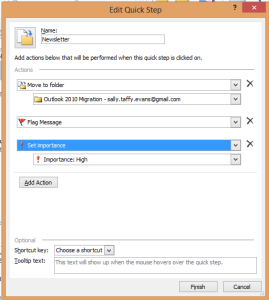
- Select Name (field) | enter a name for the Quick Step

- Select Actions (drop down box) | select relevant action
- Enter any relevant extra fields if required
- Select Add Action (button) if required to add further actions
- Keep adding actions until the Quick Step is complete
- Select Shortcut key (drop down box) | if required
- Select Tooltip text (field) to add text to display when mouse hovers over Quick Step
- Select Finish (button)
To Manage Quick Steps
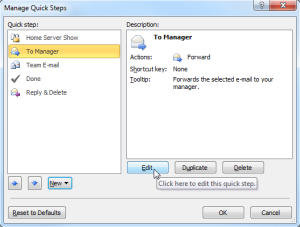
Once a Quick Step has been created it can be edited, duplicated or deleted.
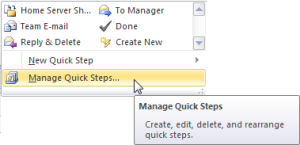
- Select Quick Steps gallery More (drop down arrow)

- Select Manage Quick Steps…
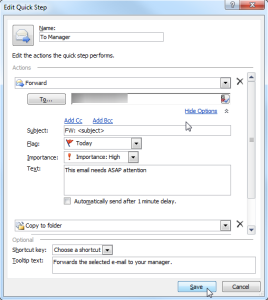
- Select Edit (button) to edit the functionality of the Quick Step
- Edit relevant fields | select Save (button)