In Windows 7 there are some shortcuts that won’t pin directly to the taskbar such as:
– Shortcuts to web pages
– Shortcuts to folders
The Quick Launch Toolbar found in Windows XP and Vista resolved this issue and can still be found in Windows 7 if you enable it. To turn on the Quick Launch Toolbar in Windows 7 simply follow the steps outlined below.
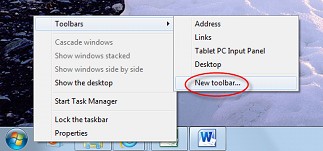
- Right click the Taskbar, select Toolbars > New Toolbar
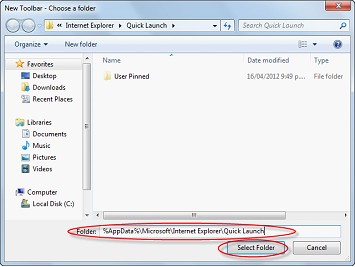
- In Folder (text box) enter %AppData%\Microsoft\Internet Explorer\Quick Launch
- Click the Select Folder (button)
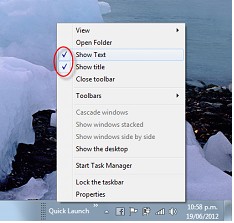
A quick launch bar is now visible on the right side of the taskbar - To hide the quick launch text and titles, right click on Quick Launch
- De-select Show Text and Show Title
- Select and drag the Quick Launch Toolbar (dotted separator) to the preferred position.

TIP: If the quick launch tool bar does not move right click the Taskbar and de-select Lock the Taskbar - Select and drag required icons to the Quick Launch Toolbar to create shortcuts
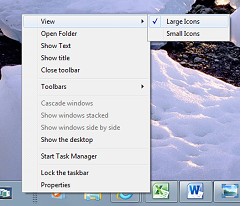
- To increase icon size right click the quick launch toolbar, select View | Large Icons